Local MCPConnect an AI tool through MCP
A compatible AI tool can connect to the unlocked app through the MCP adapter included with dot-orbit. The connection stays on your computer, is limited to your operating-system account and does not listen for network connections. The adapter cannot open or unlock your workspace, and never receives your passphrase or encryption keys.
- 01Your AI toolRunning on your computer
- 02MCP adapterNo workspace file or keys
- 03Private connectionOnly the access you approve
- 04Your reviewYou approve the changes
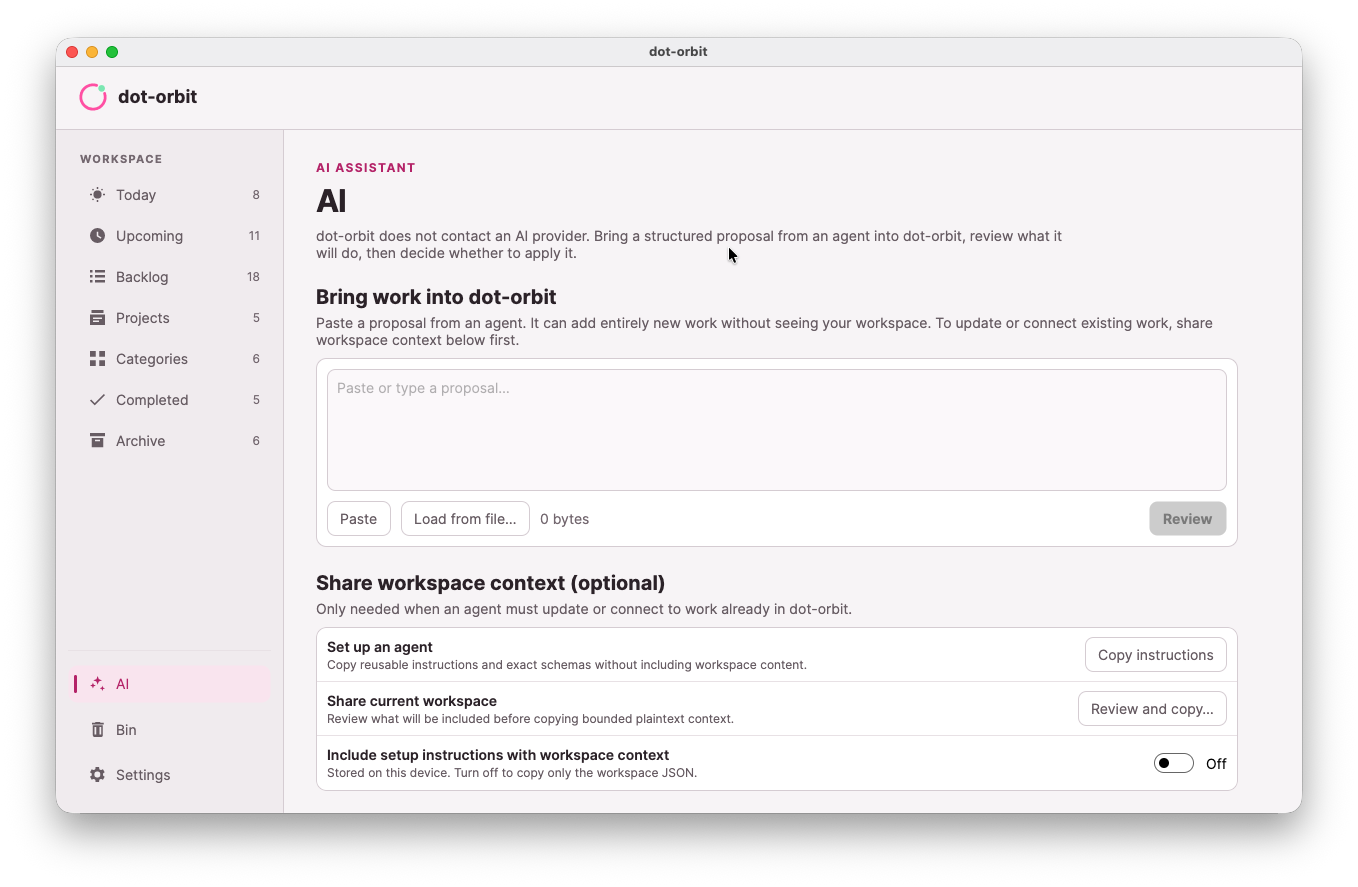
Choose whether each tool can read context, submit proposals, or both. Read access is limited to the context covered by your approval. Submitted proposals go through the same review as ones you paste or open yourself. The tool cannot apply changes for you.
Independent controlsYou control when tools can connect.
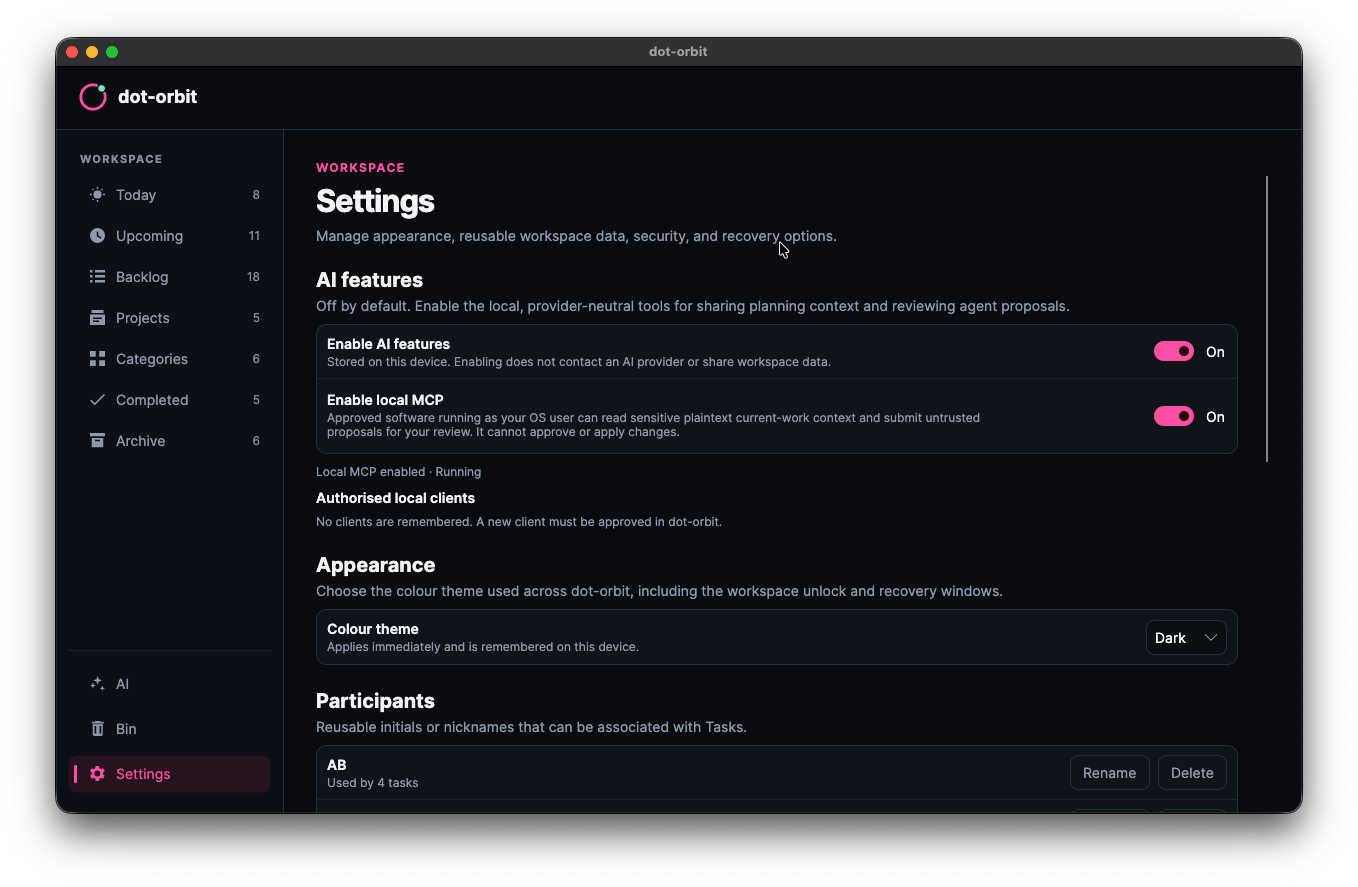
AI features and Local MCP each have a switch in Settings on this device. Both are off by default. You approve each new connection’s permissions. If you choose to remember an approval, reconnection is allowed while the credentials, account, workspace and permissions still match. If any of these change, you’ll be asked again.
Enable AI featuresOff by defaultTurn all AI handover features on or off.
Enable Local MCPOff by defaultAllow or stop local MCP connections.
Disconnect at any time: turn off either switch, lock your workspace, close dot-orbit or revoke a tool’s access. Active connections close and their access expires. Remembering an approval does not keep a connection open.